Create a store
Destiny Fundraising Manager can function as an online store, making it easy to accept credit card payments. Stores can be created by teachers, boosters, PTAs, schools, and districts.
Whether you’re selling branded T-shirts, pencils, or school planners, creating a store helps you manage your school merchandise. You can also collect payments for events and field trips and request that donors upload a document, such as a signed permission slip.
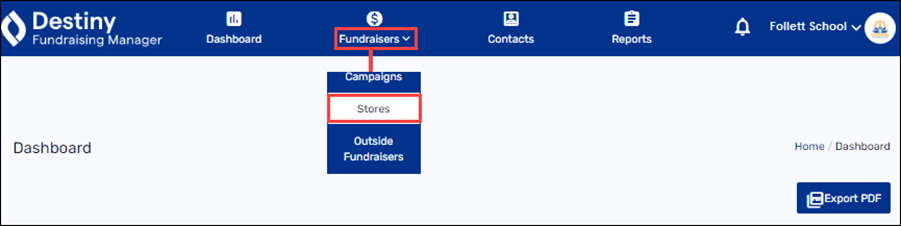
1. In the header, select Fundraisers > Stores.
2. Click +Create a Store.
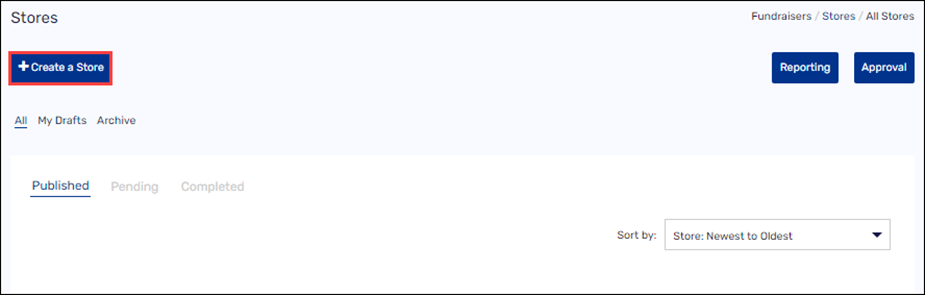
The Store Details page appears.
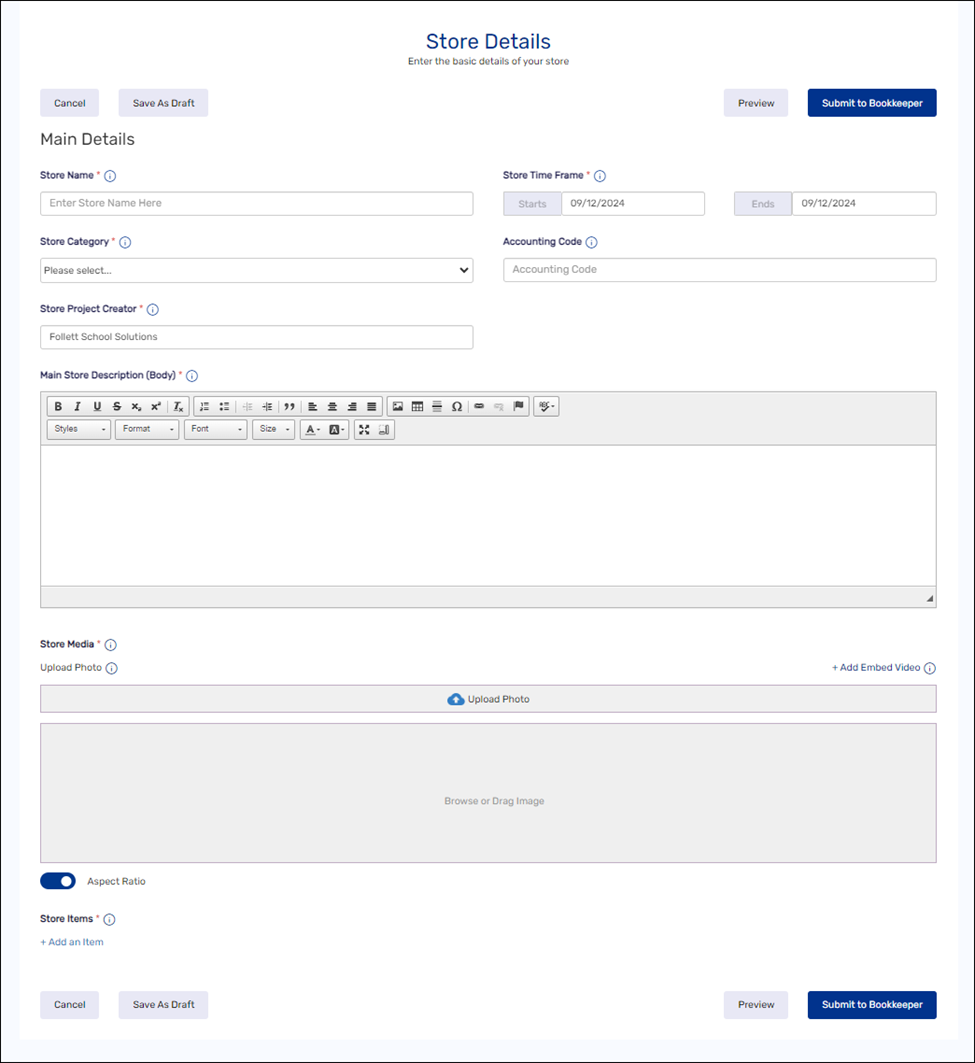
3. Fill in your store details:
|
Field |
Description |
|---|---|
|
Store Name |
Enter a name. Note: This is displayed at the top of your store and makes up the end of the URL on your store page. |
|
Store Time Frame |
Enter the start and end dates. When your store is approved, it will go live on the start date. |
|
Store Category |
Select a category from the drop-down. Note: Categories are prepopulated. If you don’t see your category, pick the closest match. |
|
Store Project Creator |
This is usually you, your school, or the district. |
|
Main Store Description (Body) |
Enter a description for your store. Notes: Be specific and creative to engage your potential buyers. |
|
Store Media Note: At least one photo or video is required. |
Do one of the following:
a. Click +Add embed Video. b. Under Youtube Video URL, paste the desired URL. c. If you want this video to appear first in the store media section, turn on the Set as Primary toggle. d. Click Save Video. Note: The video must be public for it to be visible. |
4. Leave the Aspect Ratio toggle turned on to maintain the standard (21:9) ratio for photos and videos.
5. Under Store Items, click +Add an Item. A pop-up appears.
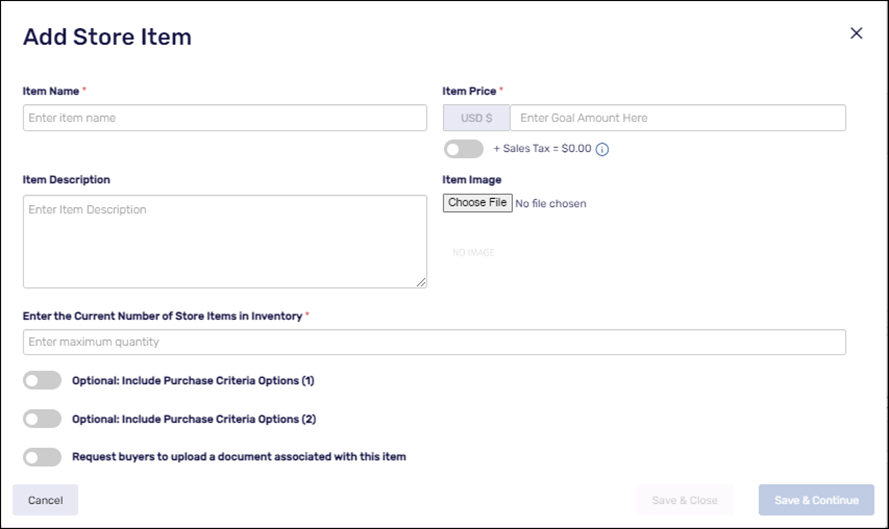
6. To add items to your store:
|
Field |
Description |
|---|---|
|
Item Name |
Enter a name. |
|
Item Price |
Enter the cost of the item. |
|
+ Sales Tax |
Enable the +Sales Tax toggle to add sales tax to the price shown. Note: This amount includes sales tax and platform fees. Check with your school or district to see if you need to add sales tax and/or platform fees. |
|
Item Description |
Enter a description for your item. Notes: Be specific and creative to engage your potential buyers. |
|
Item Image |
a. Click Choose File or Browse. b. Find the image you want. c. Click Open. |
|
Enter the Current Number of Store Items in Inventory |
Enter the number of items you have available for purchase. Note: You will not be able to sell more items than you have in inventory. |
|
Include Purchase Criteria Options (optional) |
a. Turn on either or both of the Purchase Criteria Options toggles. b. Enter a Title, such as Size. c. Enter Options, such as Small, Medium, and Large. d. Click Add. e. Repeat for each option you want to add. |
|
Request buyers to upload a document associated with this item Note: You can add a link to this form in the store description. |
a. If you want to request buyers to upload a document associated with this item, turn on the toggle. b. If you want to make it mandatory for the buyers to upload a document, turn on the toggle. c. Enter a name for the requested information, such as a field trip permission slip. |
|
Request buyers add a note for this item |
To Request buyers add a note for this item, turn on the toggle. |
-
To add more items, click Save & Continue. Repeat these steps until all items are added.
-
When you are done adding items, click Save & Close.
7. Do one of the following:
-
To submit your store for approval, click Submit to Bookkeeper. The bookkeeper will enter the accounting code and submit the store for district/school approval.
-
To see how your store will appear, click Preview.
-
To complete the store details later, select Save As > Save as Draft.
For additional help, contact techsupport@follettsoftware.com.